Discovery & Tags
Deep dives into every tool on stage
Discovery & Tags
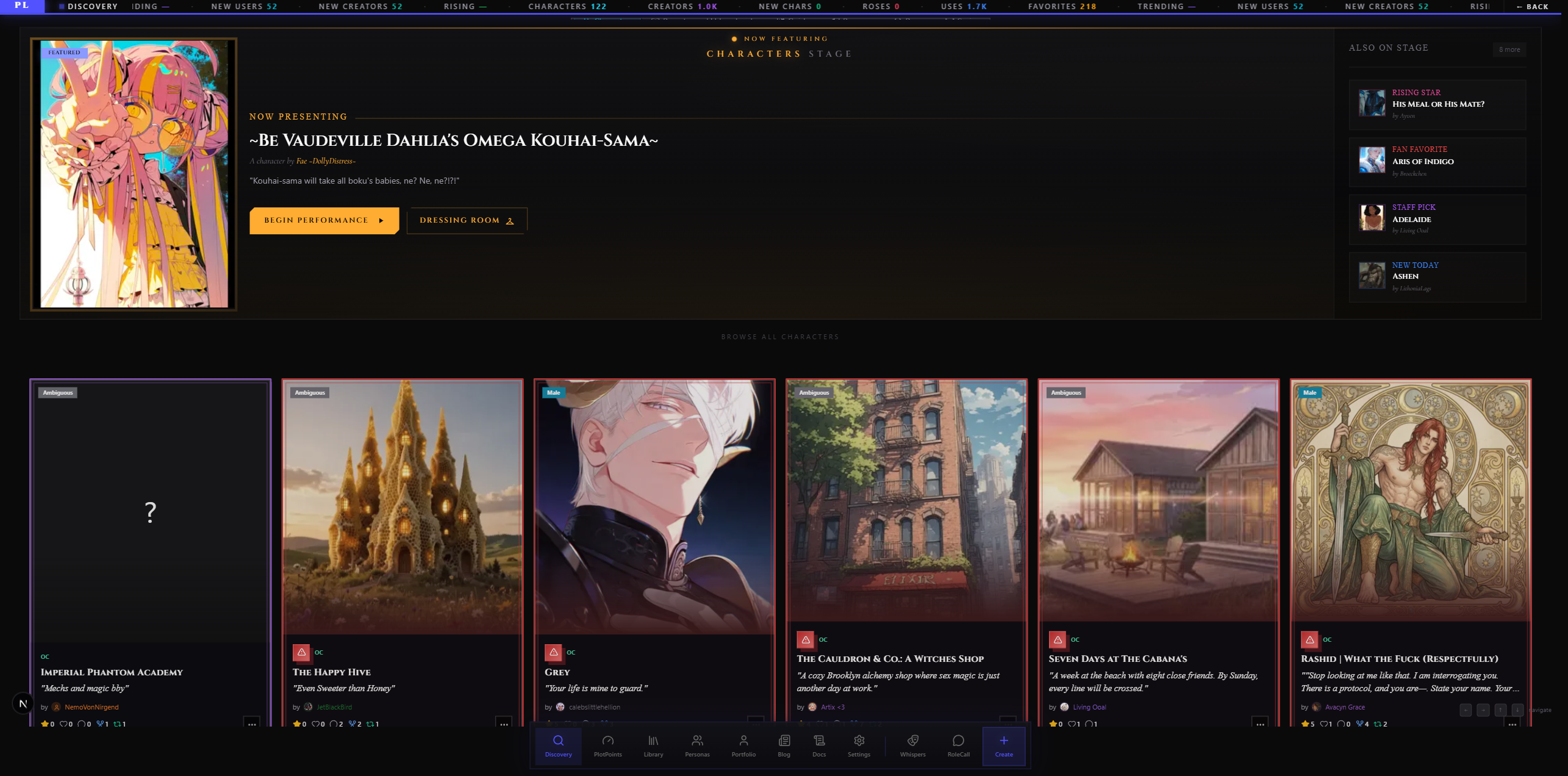
Discovery is PlotLight's public catalogue — every published Character, Preset, Lorebook, Persona, Prompt, and Series, gathered into one searchable surface. Browse it without logging in, filter by tags, sort by trending or rating, jump straight into a chat. Everything here was created by another user and offered up to the community.
This page covers how to move around Discovery and how the tag system underneath it works — including the curated tag pool, the content rating, the Tagsheet wizard, trigger warnings, and how to block tags or creators whose work isn't for you.
Once you've found something you like, you can chat with it (which sends you over to RoleCall), favourite it, rate it, subscribe to the creator, or rewrite (fork) it into your own Library to edit and remix.
Discovery — Browsing Public Content
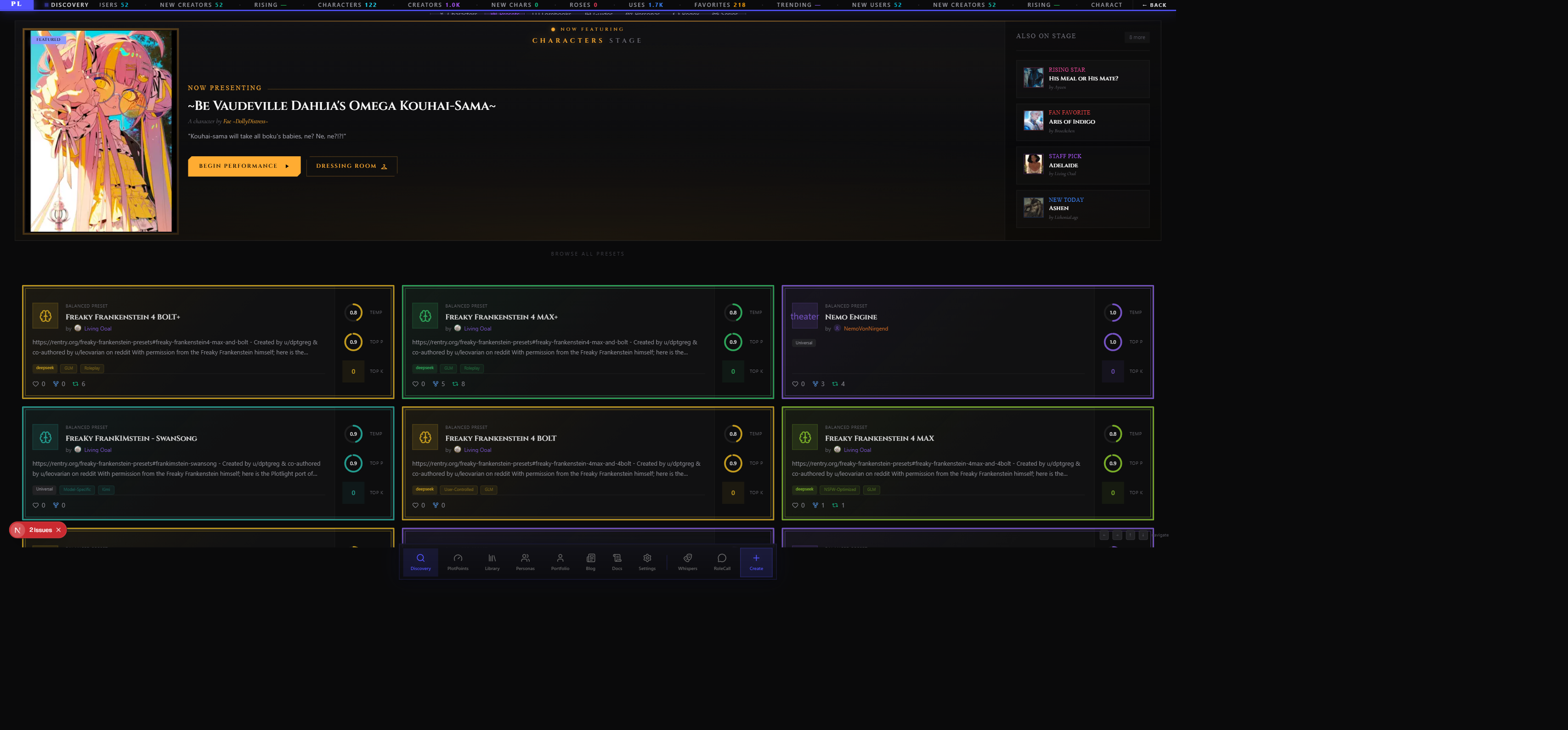
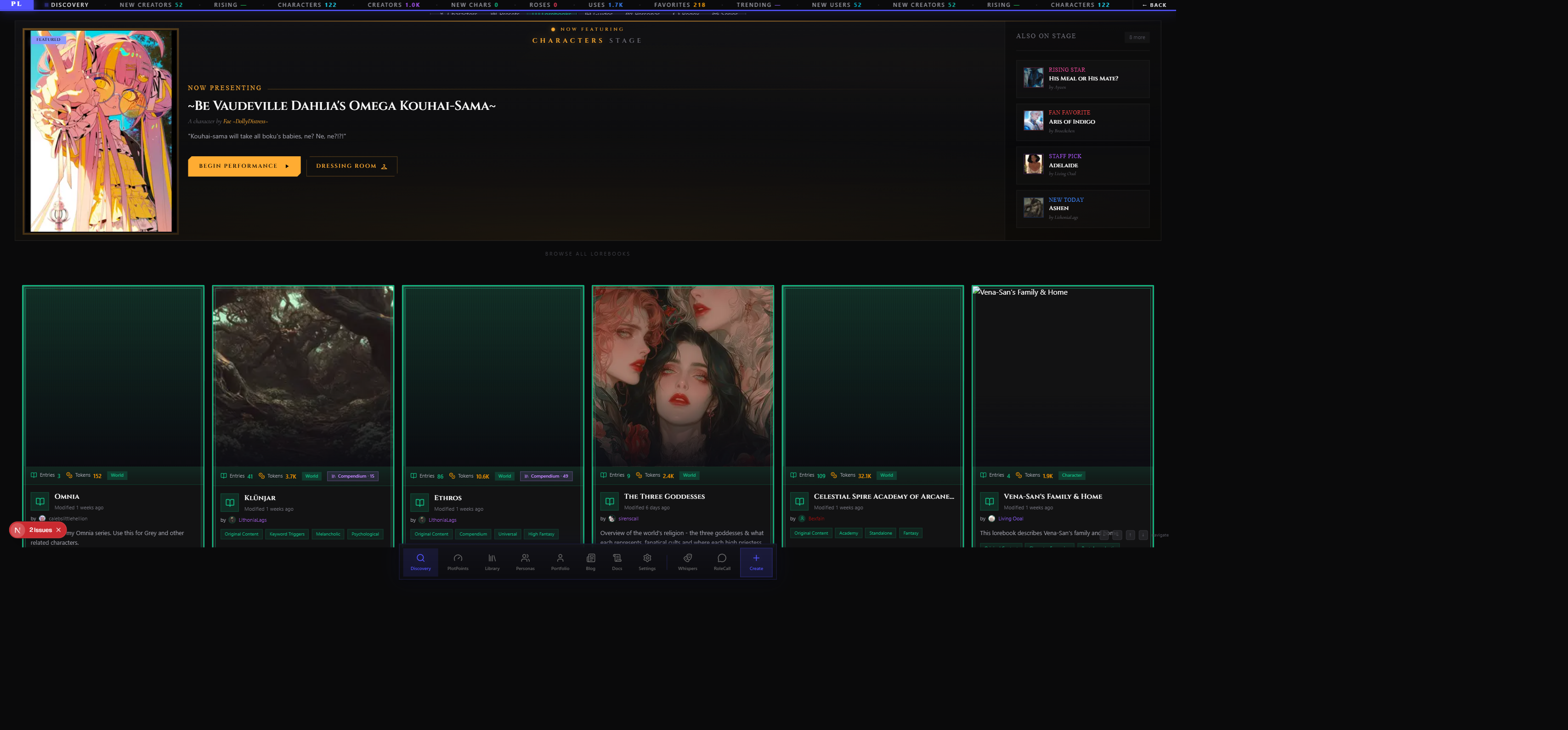
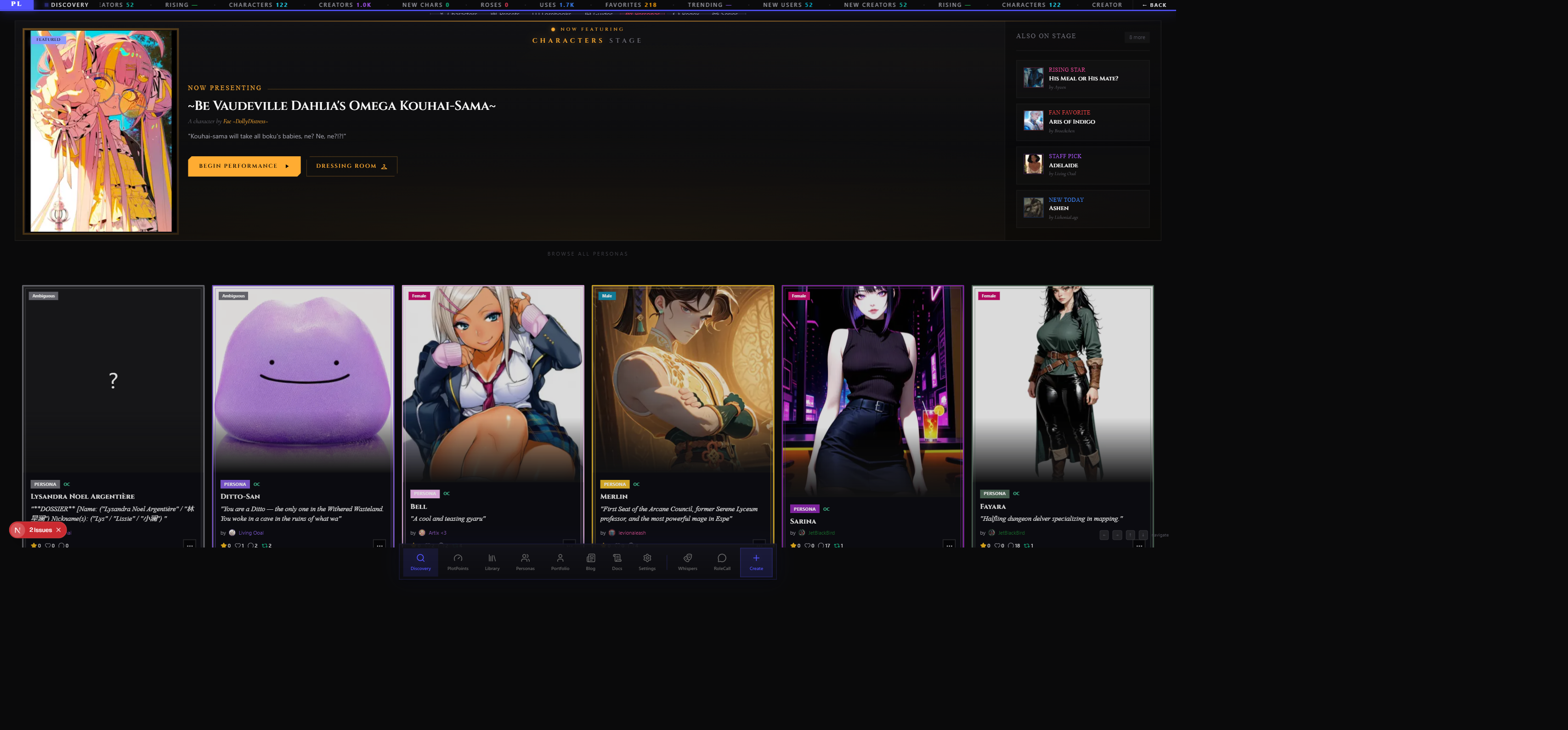
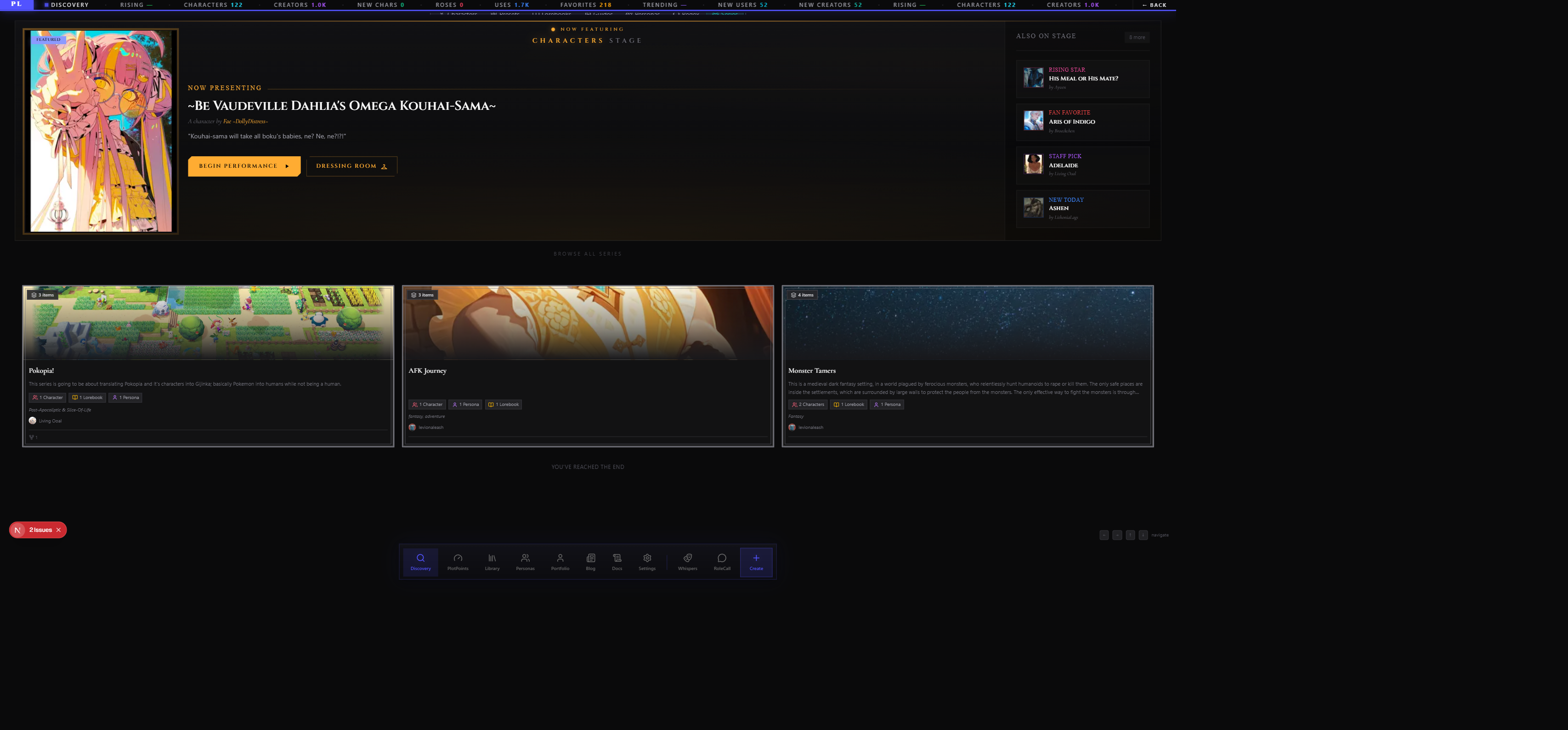
Discovery is a single page that lets you swap between content types without leaving. By default it lands on Characters (the largest catalogue), but the content-type picker can add or remove types one at a time — left-click to add, right-click to remove. You can browse a single type, two types side-by-side, or all of them at once. The search query, active tags, sort order, and content rating stay sticky as you move between types.
What Each Card Shows
Cards are uniform across content types. A Character card surfaces a little more (chats, ratings) and a Preset card a little less, but the skeleton is the same.
| Element | What it tells you |
|---|---|
| Cover image / thumbnail | The creator's chosen art — tap to open the detail view |
| Name | The content's title |
| Tagline | The one-line pitch (or first sentence of the description if no tagline is set) |
| Creator badge | Username plus avatar of the creator. Tap to visit their Portfolio. |
| Tags | Genre, theme, archetype, and other categorisation — long-press the card on mobile or right-click on desktop to see the full tag list |
| Star rating | Average of all user ratings, when there are any |
| Favourites | How many users have favourited this |
| Chats | (Characters only) How many scenes have been started |
| Forks | How many users have rewritten this — visible only when at least one exists |
| Subscribers | How many users have added it to their library without rewriting (the Repertoire count) |
| Fork attribution | If the content is itself a rewrite, the original creator is credited on the card |
The card's accent colour comes from the creator's chosen signature colour, so creators with a consistent palette read as a visual brand across Discovery.
Card Context Menu
Right-click on desktop or long-press on mobile to open a card's context menu. The menu has every action that lives on the detail page in shortcut form:
- Rewrite — copy the content into your library as a draft
- Add to Library — subscribe to the content (Repertoire)
- Favourite — bookmark it privately
- Rate — open the rating modal
- Share — copy a permalink
- Report — open the report modal
If you're the creator of the content, the menu shows admin actions instead (edit, unpublish, feature, delete).
Standalone Discovery Pages
Every published item has its own dedicated detail page reachable from the card. The URL shape mirrors the content type — /discovery/characters/..., /discovery/presets/..., /discovery/lorebooks/..., and so on. The detail page shows the full description, every field on the card, the creator's other works, ratings and reviews, the fork lineage (if any), and the action buttons (rewrite, subscribe, favourite, report).
Tag-Specific Pages
Clicking a tag chip on a card or tapping a tag in the filter tree opens a filtered Discovery view scoped to that tag. These pages have their own SEO-friendly URLs (for example /discovery?tags=fantasy or /discovery?genre=mystery) and behave like the main Discovery page with the tag filter pre-applied. Sharing a tag URL is the easiest way to point someone at "all the noir characters" or "every cosy fantasy preset".
The Discovery Hub
The single bar at the top of Discovery is the Discovery Hub. It collapses three things into one surface: the search input, the content-type picker, and a dropdown that opens into three tabs — Filters, Safety, and Settings. Pressing Cmd + K (Mac) or Ctrl + K (Windows / Linux) opens the hub from anywhere on the page. Esc closes it.
Search Modes
The search box matches your query against different fields depending on the active search mode. Each content type has its own mode list, picked from the chips beneath the search bar. Modes change what the query searches; they don't filter results to one field.
| Mode | Searches | Available for |
|---|---|---|
| Names / Titles | Content name or title | Every type (default) |
| Creators | Creator username or display name | Every type |
| Tags | Tag names (e.g. "noir", "knight", "shy") | Characters, Personas |
| Fandoms | Fandom field on the card | Characters |
| Genres / Categories | Genre or category field | Characters, Lorebooks, Guides, Series |
| Styles | Style descriptors like "verbose", "terse", "chat" | Presets |
| Models | Compatible model families like Claude, GPT, Gemini | Presets |
| Types | Type field for narrower categorisation | Lorebooks, Guides |
Search runs as you type with no submit button. Your last query and active filters persist across page reloads.
The Filters Tab
The Filters tab is a two-column panel: a tag tree on the left, the filter options on the right.
The tag tree groups tags by category — Genre, Species, Relationship, Setting, Theme, Mood, Fandom, Archetype, Trope, Occupation, Personality, Dere Type, Sexuality, Gender, Body Type, Origin, Subculture — with category headers that expand and collapse. Selecting a tag adds it as an active filter chip; the grid updates immediately. Re-clicking a selected tag toggles it off. Some categories are character-only (Species, Relationship). They still appear in the tree when you're browsing other content types but won't have an effect.
The filter options on the right include:
- Content type pills — toggle which types are showing
- Min Rating chips — Any / 3+ / 4+ / 5 (filter out anything below a chosen star average)
- Min Roses and Min Favourites — high-water-mark filters for Presets and Lorebooks (Any / 10+ / 50+ / 100+, Any / 5+ / 25+ / 50+)
- Availability — All / On Tour / House Only (for Characters; filters by whether the content can be exported)
- Model Family — Claude / OpenAI / Gemini / Mistral / Llama (for Presets; multi-select)
- Sort options (see below)
- A Recent Searches strip and a Saved Searches strip at the bottom
Selecting a tag that's flagged as After Dark automatically enables After Dark mode for the rest of the session — you don't have to dig through Settings to see the content the tag describes.
Sort Options
The sort picker sits inside the Filters tab. Available options:
| Sort | What it does |
|---|---|
| Trending | Recently published with strong engagement (default for logged-in users) |
| Newest | Sorted by publish date, freshest first (default for guests) |
| Most Used | By download count |
| Most Favourited | By favourite count |
| Most Forked | By rewrite count |
| Recently Updated | By last edit timestamp |
| Alphabetical | A–Z by name |
A direction toggle (Ascending / Descending) sits next to the sort picker. Default direction is Descending for every sort except Alphabetical.
Recent and Saved Searches
Two small lists at the bottom of the Filters tab make repeat searches one-click.
- Recent — the last few searches you typed, with tag counts. Tap one to re-run it. Recent searches are stored on the device you searched from.
- Saved Searches — searches you've explicitly named and saved (e.g. "Cosy fantasy under 2k tokens", "Claude-tuned mystery presets"). Saved searches remember the query text plus the entire filter state — selected tags, excluded tags, content types, content-rating tier, sort order. They sort by last-used so the ones you actually use stay at the top. The Save Current button at the top of the saved-searches strip captures whatever the hub is showing right now.
Saved searches sync across devices once you sign in.
The Safety Tab
The Safety tab is where you tune how RoleCall handles potentially distressing content. Every published piece of content can declare specific trigger warnings — violence, sexual violence, abuse, mental health, death, substance use, captivity, prejudice, or "other" — and every warning carries a severity rating (Mild, Moderate, Severe).
For each trigger warning you can pick one of three preferences:
- Show — appears normally
- Warn — appears with a blur overlay until you confirm
- Hide — never appears in your Discovery feed
The Safety tab presents every warning grouped by severity, with a search box at the top so you can jump straight to a specific one. Selecting a warning on the left and choosing Show / Warn / Hide on the right saves instantly — there's no Apply button. An "Active Safety Filters" panel summarises what's currently on so you can audit your settings at a glance.
Trigger warning preferences sync across devices once you sign in.
The Settings Tab
The Settings tab holds the long-lived preferences that govern your whole Discovery experience.
- After Dark Mode — global toggle. When on, explicit content surfaces in Discovery (subject to the rules below). When off, explicit content is hidden everywhere. Authenticated users can persist this; guests can flip it on for the session only.
- Divisive Content — opt-in toggle for content categories that are legal but polarising. Off by default. When off, every tag marked as divisive is blocked.
- Blocked Tags — a managed list of tags that never surface content for you. Different from filter exclusion: blocked tags persist forever across sessions. Each blocked tag carries a block mode (Hide / Warn / Mute) so you can fine-tune the experience.
- Blocked Creators — a list of creators whose content is hidden from you. Their content disappears from your Discovery feed, their portfolio shows an "unreachable" notice, and any of their content already in your library is greyed out. Blocking is one-way and silent — nothing notifies the blocked creator.
- Default Sort — pick which sort you want every time Discovery loads. Useful if you almost always browse by Newest or Recently Updated.
Content Rating — The Safety Layer
Every piece of content carries a rating that gates where it appears:
| Rating | What it means | Visible to |
|---|---|---|
| All Hours | Suitable for general audiences | Everyone |
| Late Night | Mature themes — violence, dark topics, suggestive | Everyone, with content rating shown |
| After Dark | Explicit adult content | Authenticated users with After Dark Mode enabled |
Guests (not signed in) never see After Dark content; URL parameters cannot override this. Authenticated users default to whatever they've chosen on the Settings tab.
When NOT to Use the Hub
You don't need the hub for casual browsing — the default Trending feed is curated to surface fresh, well-rated work. Reach for the hub when:
- You're hunting for something specific (use Names / Creators / Tags modes)
- You want to dial in a strict catalogue (use trigger warning preferences plus blocked tags)
- You're a creator researching what's trending in a niche (use Tags or Genres mode plus the Most Forked sort)
Tags — The Full Picture
Tags are the universal categorisation layer for everything in the catalogue. The same tag taxonomy applies to Characters, Personas, Presets, Lorebooks, Prompts, Guided Responses, Regex Scripts, and Series — one curated pool, shared everywhere. Browse by a tag and you get every kind of content marked with it, not just one type.
This section pulls together every tag-related capability on RoleCall — the categories, the intensity model, trigger warnings, content rating, the Tagsheet wizard, blocked tags, tag requests, and how it all interacts with rewriting.
The Curated Pool
The tag list isn't free-text. Tags are curated by the taxonomy team and grouped into categories. A tag has a single canonical name plus optional synonyms — alternative spellings or shorthand that the search still recognises. Typing "scifi" finds tags whose synonym list contains "scifi" even though the canonical name is "Science Fiction". This is the closest thing RoleCall has to aliases: one tag with many ways to find it.
Tags are organised into broad families. Some apply to every content type, some are specific to one. The most important families:
| Family | Examples | Mostly used by |
|---|---|---|
| Genre | Fantasy, Sci-Fi, Slice of Life, Horror, Romance | Everything |
| Theme | Found Family, Power Dynamics, Coming of Age | Everything |
| Trope | Enemies to Lovers, Fish Out of Water | Characters, Lorebooks |
| Setting | Modern, Victorian, Cyberpunk, High Fantasy | Characters, Lorebooks |
| Mood | Cosy, Dark, Hopeful, Melancholy, Chaotic | Everything |
| POV | First Person, Second Person, Third Limited | Everything |
| Fandom | Specific series, franchises, properties | Characters |
| Card Format | Solo, Duo, Group, OC, Fandom | Characters |
| Species | Human, Elf, Vampire, Beastfolk, Robot | Characters |
| Gender | Male, Female, Non-Binary, Intersex | Characters, Personas |
| Sexuality | — | Characters, Personas |
| Personality | Shy, Confident, Mischievous, Stoic | Characters, Personas |
| Archetype | Mentor, Trickster, Knight, Rogue | Characters |
| Dere Type | Tsundere, Yandere, Kuudere, Dandere | Characters |
| Occupation | Doctor, Soldier, Wizard, Pirate | Characters |
| Relationship | Roommate, Sibling, Coworker | Characters |
| Subculture | Goth, Cottagecore, Academia, Punk | Characters |
| Preset Style | Verbose, Terse, Chat-First, Prose-First | Presets |
| Preset Verbosity / Creativity / Pacing / Technical | Tuning descriptors | Presets |
| Preset Model | Claude-tuned, GPT-tuned, Gemini-tuned, Mistral-tuned | Presets |
| Preset Purpose | Roleplay, Co-writing, Adventure | Presets |
| Preset Modifier | Anti-slop, Sampler-heavy, Macro-heavy | Presets |
| Lorebook Scope / Binding / Trigger / Complexity | Structural descriptors | Lorebooks |
| Prompt Purpose / Injection / Target / Complexity | Structural descriptors | Prompts |
| Persona Role / Detail | Player, Observer, Detailed, Light-touch | Personas |
| Kink | (After Dark only — sub-families: Dynamics, Bodies, Acts, Scenarios, Fetish, Fantasy, Extreme) | Characters, Personas, Lorebooks |
Most categories have dozens of tags. Some (Kink, anything marked After Dark) are hidden unless you've opted into After Dark mode. The category list above is not exhaustive — new categories appear as the catalogue grows and tag requests are approved.
Tags and Search Modes
The nine search modes in the Discovery Hub map onto specific slices of the tag pool. Picking a mode tells the search bar which fields and categories to match against:
| Search mode | Hits these tag families |
|---|---|
| Names / Titles | Content name only — not tags |
| Creators | Creator profile, not tags |
| Tags | Tag name and synonyms across every category |
| Fandoms | Fandom category plus the structured fandom field |
| Genres / Categories | Genre and Theme |
| Styles | Preset Style category |
| Models | Preset Model category |
| Types | Lorebook scope, guide type, preset purpose |
For tag-based browsing, the Tags mode plus the tag tree on the Filters tab is the workhorse — the search bar matches names and synonyms, the tree lets you pick exact tags by category.
Tag Intensity (1 / 2 / 3)
When a creator adds a tag they pick how prominent it is. Intensity is a three-step scale:
| Level | Label | What it means |
|---|---|---|
| 1 | Subtle | The trait is present but not a focus. A warrior character whose "romance" intensity is 1 has hints of it. |
| 2 | Moderate | A notable element. The trait shapes the work but isn't its defining feature. |
| 3 | Prominent | A defining feature. The whole piece revolves around it. |
Intensity is set in the Tagsheet wizard: click a tag once to add it (intensity 1), click again to bump it to 2, click again for 3. After level 3 it stops. Right-click (or long-press on mobile) removes the tag entirely. The card chip shows little "+", "++", "+++" markers so anyone reading the tag at a glance can tell whether you mean a passing reference or the centre of the story.
Where intensity matters in Discovery:
- Search ranking. Higher-intensity matches surface first. Searching for "noir" returns characters tagged noir at intensity 3 before ones tagged at 1.
- After-fork inheritance. When you rewrite content, the intensity values come across with the tags. You can edit them after the fork like any other field.
- Card visualisation. Each chip's border and glow get slightly stronger for intensity 2 and 3, so a quick glance at a card's tag chips tells you which traits dominate.
Intensity is supported on every content type that has tags, not just characters — a preset tagged "anti-slop" at intensity 3 reads very differently from one tagged at intensity 1, and the catalogue shows that.
Trigger Warnings — A Special Class
Trigger warnings are tracked separately from regular tags but live in the same Tagsheet flow. They give content a content-safety label rather than a discovery label, and users can express explicit preferences about each one.
There are 9 categories:
| Category | What it covers |
|---|---|
| violence | Physical violence, combat, gore |
| sexual_violence | Sexual assault, coercion, non-consent |
| abuse | Emotional, physical, or psychological abuse |
| mental_health | Self-harm, suicide, eating disorders, depression |
| death | Death, grief, terminal illness |
| substance | Alcohol, drug use, addiction |
| captivity | Imprisonment, kidnapping, slavery |
| prejudice | Racism, homophobia, transphobia, ableism |
| other | Anything not covered above (each tag has a description) |
Each individual warning carries a severity of 1, 2, or 3, labelled in the UI as:
| Severity | Label | What it signals |
|---|---|---|
| 1 | Mild | Mentioned, off-page, brief |
| 2 | Moderate | Depicted but not central |
| 3 | Severe | Detailed, central, or repeatedly explored |
Severity is set by the trigger-warning entry itself (the taxonomy team decides), not by the creator. The creator just picks which warnings apply.
For each warning, every user can pick one of three personal preferences on the Safety tab:
| Preference | What you'll see |
|---|---|
| Show | Content appears normally — no blur, no banner |
| Warn | Content appears with a blur overlay you have to dismiss |
| Hide | Content never appears in your feed |
Preferences are per warning, per user. You can hide "sexual_violence" entirely while still showing "violence" with no warning at all. Changes save instantly as you click them. The Safety tab also surfaces an Active Safety Filters summary so you can audit what's currently filtering.
How trigger warnings interact with content rating:
- Content rated After Dark is required to declare at least one trigger warning at publish time. The publish flow rejects After Dark content with no warnings.
- Content rated Late Night can declare warnings but isn't required to. Many do.
- Content rated All Hours rarely declares warnings (the All Hours bar means nothing in there should warrant one).
- The Safety tab filters apply across content rating. If you've set a warning to Hide, content with that warning is hidden whether it's rated All Hours, Late Night, or After Dark.
Content Rating
Every published piece of content carries one of three content ratings. The rating is calculated from the highest-rated tag on the content — if any tag is After Dark, the whole piece is After Dark; if any is Late Night, the piece is at least Late Night; otherwise it's All Hours.
| Rating | What it means | Who sees it |
|---|---|---|
| All Hours | Suitable for general audiences | Everyone, including guests |
| Late Night | Mature themes — violence, dark topics, suggestive | Everyone, controllable via Settings |
| After Dark | Explicit adult content | Authenticated users with After Dark mode on |
Where rating is enforced:
- At publish time — the Tagsheet wizard refuses to publish After Dark content without trigger warnings, and the wizard's chrome turns red for After Dark / blue for Late Night so creators see what they're publishing into.
- At the Discovery filter — guests can never see After Dark content; URL parameters can't override this. Authenticated users see After Dark only when the After Dark toggle is on in the Settings tab. Late Night visibility is also a toggle on the Settings tab.
- At search — selecting a tag that's flagged After Dark automatically flips the After Dark toggle on for the rest of the session, so you don't have to dig through Settings.
- At the card chip — the content rating shows as a small label on every card and as a coloured accent (red for After Dark, amber for Late Night, emerald for All Hours).
Beyond the three-tier rating, there's also Divisive Content — a separate toggle that exposes tags the taxonomy team has flagged as polarising (legal but contentious). Off by default. Flipping it on blocks every divisive tag from your feed; flipping it off restores them. This is the Settings tab card called "Divisive Content".
The Tagsheet Wizard
The Tagsheet is the unified tagging interface that creators use across every content type that supports tags — Characters, Personas, Presets, Lorebooks, and Prompts. It's a multi-step modal that walks you through every relevant category for your content type, picking tags as you go.
The flow:
- Portrait & Branding (Characters, Personas) — name, tagline, cover image, emoji, signature colour and palette
- Card Format / Type (Characters) — Solo, Duo, Group, OC, Fandom
- Origin & Fandom (Characters, Personas, Lorebooks) — original character vs fandom, plus the structured fandom data and any AU modifier
- Tag categories — one step per category that applies to your content type (Gender, Species, Personality, Archetype, Genre, Theme, Trope, Setting, Mood, etc.)
- Trigger Warnings (Characters, Personas) — pick any warnings that apply
- Content Rating — All Hours / Late Night / After Dark (auto-suggested from your tags but overridable)
- Review & Save
A few things the wizard enforces:
- Card-type guards for characters (Duo characters need exactly 2 gender entries, Group characters need 3+, etc.)
- Required categories — some categories (Card Format for characters, Lorebook Scope for lorebooks) must be filled before save
- Min / max tag selections per step — for example, "pick at least 1 mood, at most 3"
- After Dark publish guard — After Dark content must have at least one trigger warning
- Min character counts for the descriptive fields (name 2+ characters, tagline up to 100, etc.)
You can re-open the Tagsheet at any time from the content's editor — it's not a one-shot publish modal. Editing tags after the fact updates the content's calculated rating, refreshes its Discovery card chips, and re-evaluates whether it appears in your Safety-filtered feed.
The wizard isn't available for Guided Responses or Regex Scripts directly — those content types tag through the standard editor's tag picker rather than the wizard flow, but they pull from the same tag pool.
Requesting a New Tag
If a tag you want doesn't exist, the tag picker (and every Tagsheet category step) has a Request a Tag action. The modal asks for:
| Field | What | Required | Limits |
|---|---|---|---|
| Tag name | What you'd like it called | Yes | 2–50 characters |
| Category | Which family it should join | Yes | Pick from the 15 request-eligible categories |
| Subcategory | For grouped tags (e.g. Species → "mythological") | No | Free text |
| Reason | Why it should exist and how it differs from existing tags | Yes | 20–500 characters |
| Synonyms | Comma-separated alternative names so duplicate requests merge | No | Free text |
Eligible categories for requests: gender, species, personality, archetype, dere_type, occupation, sexuality, relationship, setting, theme, trope, mood, subculture, pov, kink. Fandom tags work differently (structured fandom data) and aren't request-eligible.
The system blocks two kinds of duplicates upfront:
- A tag with the same name already exists in that category (you get pointed at the existing tag)
- You already have a pending request for the same tag
Requests show up in your account's tag-request list with a status:
| Status | What it means |
|---|---|
| Pending | Waiting for the taxonomy team to review |
| Approved | The tag was created and is now in the picker |
| Rejected | The tag wasn't added (admin notes explain why) |
| Duplicate | Marked as an alias of an existing tag (you get pointed at the canonical one) |
The taxonomy team usually reviews requests within a couple of days. Approved tags become available to every creator, with the synonyms you suggested carried into the tag definition so the search picks them up too.
Blocked Tags
The Settings tab has a managed list of tags that never surface content for you. This is different from the per-search filter exclusion on the Filters tab — blocked tags persist forever across sessions and across devices once you sign in.
Each blocked tag carries a block mode:
| Block mode | What happens to content with that tag |
|---|---|
| Hide | Never appears in your feed |
| Warn | Appears with a blur overlay |
| Mute | Appears but is sorted to the bottom and dimmed |
You can block one tag at a time, or block whole categories (e.g. every Kink tag in one go from the "Divisive Content" card on the Settings tab, which is itself a bulk block of all divisive tags).
Blocked tags and the Safety tab's trigger-warning preferences stack — a piece of content has to clear both filters to appear in your feed.
Blocked Creators
Adjacent to blocked tags: the Settings tab also lets you block whole creators. When you block someone:
- Their content disappears from your Discovery feed entirely (regardless of tags)
- Their portfolio page becomes unreachable from your account
- Any of their content already in your library is dimmed
- Blocking is one-way and silent — they're not notified
Blocked creators trump tag filters — if you've blocked a creator, you won't see their content even if it's perfectly tagged for your preferences.
Tag Inheritance When You Rewrite
When you rewrite (fork) content, the tag relationships come along for the ride:
- Tags carry over — every tag on the original is copied to your rewrite, with the same intensity values
- You can edit any of them after the fork — the tags are now yours, in your library
- Trigger warnings do NOT carry over — the rewrite enters your library without trigger warnings; you have to declare them again at publish time, especially for After Dark content
- Content rating starts fresh — your rewrite's rating is recalculated from whichever tags you keep, which means if you remove the After Dark tag you don't need trigger warnings to republish
Rewriters often re-tag substantially because the spirit of forking is "make it your own". The Tagsheet wizard is the obvious next stop after a fork — open it on the new draft, prune what doesn't fit, add what does.
For your own content, edits to tags don't propagate to people who've already subscribed (Repertoire) unless you publish a new version. The new version's tags become the snapshot they pull when they update.
Click-a-Tag Anywhere
Every tag chip everywhere in the app is clickable. Click a tag on a Discovery card, in a creator's portfolio, inside a character editor's tag list, or in your own Library — it opens a filtered Discovery view pre-scoped to that tag. The URL is shareable (for example /discovery?tags=fantasy or /discovery?tags=noir,detective) and you can paste it into any chat to point someone at exactly the slice of the catalogue you mean.
Tag URLs are SEO-friendly and rank in search engines, so creators who tag thoroughly tend to get long-tail traffic from people searching for very specific tropes.
Multi-Tag Filtering — AND, Not OR
Selecting multiple tags on the Filters tab narrows the result set with AND semantics — content must carry every selected tag to appear. Selecting "noir" plus "detective" surfaces content tagged with both, not content tagged with either.
For OR-style browsing, run separate searches or use a saved search per slice. The active filter chips at the top of Discovery show every tag you've selected so you can pop them off one at a time if the result set is too narrow.
The filter panel also supports excluding tags — clicking a tag in the active-chips strip a second time toggles it from include to exclude (the chip turns red with a minus icon). Exclusion is also AND-style — anything carrying any excluded tag is filtered out.
Tag Stats and Popularity
Every tag has a usage_count that tracks how many published pieces of content carry it. The taxonomy team uses this to spot which tags are dominating (and may need subcategories) and which are underused (and may need consolidating).
For creators, tag-derived signals feed into the Most Used / Most Favourited / Most Forked sort options. There isn't a per-tag analytics view today, but Discovery's tag pages function as a popularity lens — the freshest, highest-rated content under a given tag floats to the top of that tag's URL, so you can see how your work ranks within its niche.
Cross-Reference
- For the creator-facing publish flow that uses the Tagsheet wizard, see Tagging Your Own Content below.
- For per-content-type field requirements and Tagsheet step lists, see each type's reference: Characters, Personas, Presets, Lorebooks.
- For the Safety tab UI specifically, see The Safety Tab above.
Ratings, Favourites, Subscriptions, Reports
Four social actions sit on every Discovery card and detail page. Each one means something specific; they're not interchangeable.
Star Ratings
You can rate any published Character, Lorebook, Preset, Persona, or Prompt one to five stars and leave an optional text review (up to a few thousand characters). Ratings show up on the creator's content page, drive the average shown on each Discovery card, and influence the Most Favourited / Highest Rated sort order.
Rules:
- One rating per user per content piece — submitting a new one updates your old one (it's an update, not a stack)
- You can't rate your own content
- You can delete a rating you've left at any time
- Ratings are public; the written review is public too if you write one
- Editing a rating bumps its timestamp so reviewers can see fresh reactions
The review box is optional. Many ratings are just a star number — text reviews are most common for presets and lorebooks, where users want to share what model they ran the content against and what worked.
Favourites
A heart icon on every card. Favouriting is a private bookmark — it adds the content to your Favourites collection in the Library and increments the creator's favourite count, but nothing else happens. Favourites work on Characters, Lorebooks, Presets, Personas, Prompts, Guides, Regex Scripts, and Series.
Favouriting doesn't notify the creator beyond the count bump.
Subscribing (Repertoire)
Distinct from favouriting and from rewriting: subscribing to a piece of content adds a versioned reference to your Library without copying it. The content stays under the original creator's control. When they publish an update, your subscription pointer can either move forward automatically (auto-update on) or stay frozen on your pinned snapshot (auto-update off, the default).
The button is labelled Add to Library on Discovery cards and the small green icon in the card metric strip is your "Subscribers" count. Subscribed content has its own Library section, separate from things you created or rewrote. You cannot subscribe to your own content — the action is blocked at the source.
When the upstream content updates:
- Auto-update on — your pointer moves to the latest snapshot the next time the content loads
- Auto-update off — you see an "Update available" badge and decide whether to bump or stay
- Either way, the version history modal lets you scroll through every version, see the release notes the creator wrote, view per-field change reasons, compare any two versions side-by-side, and pin yourself to a specific snapshot
The version-history modal is reachable from a subscribed item's card context menu under Version History. Pinning to an old version is permanent until you change it — useful when a creator publishes a new release that breaks your scene and you want to stay on the old behaviour.
Subscribing is the recommended path when you want to use a creator's work as-is. Rewriting is the path when you want to change it.
Unsubscribing
Removing something from your Repertoire is a single click in the card context menu (Remove from Library). The content disappears from your Library; any scenes that referenced it keep working off the snapshot they had at the time, but you'll see an "unsubscribed" hint inviting you to re-add it.
Reports
Every card has a Report action in its context menu. Reports cover:
| Type | What it's for | Minimum explanation |
|---|---|---|
| CSAM / Minor Safety | Content depicting or sexualising minors | 50 characters |
| Illegal Content | Other Terms of Service violations | 50 characters |
| Harassment | Targeted abuse, threats, or hate | 100 characters |
| Plagiarism | Content copied without credit | 100 characters + an evidence URL |
| Tag Misuse | Incorrect, misleading, or weaponised tagging | 150 characters |
| Other | Anything else with a written explanation | 100 characters |
Reports go to the moderation team. You'll see the outcome in your own Moderation page — pending / upheld / dismissed. Repeat false reporting reduces your reporter trust score and can put you in a reporting cooldown.
Content Detail Pages
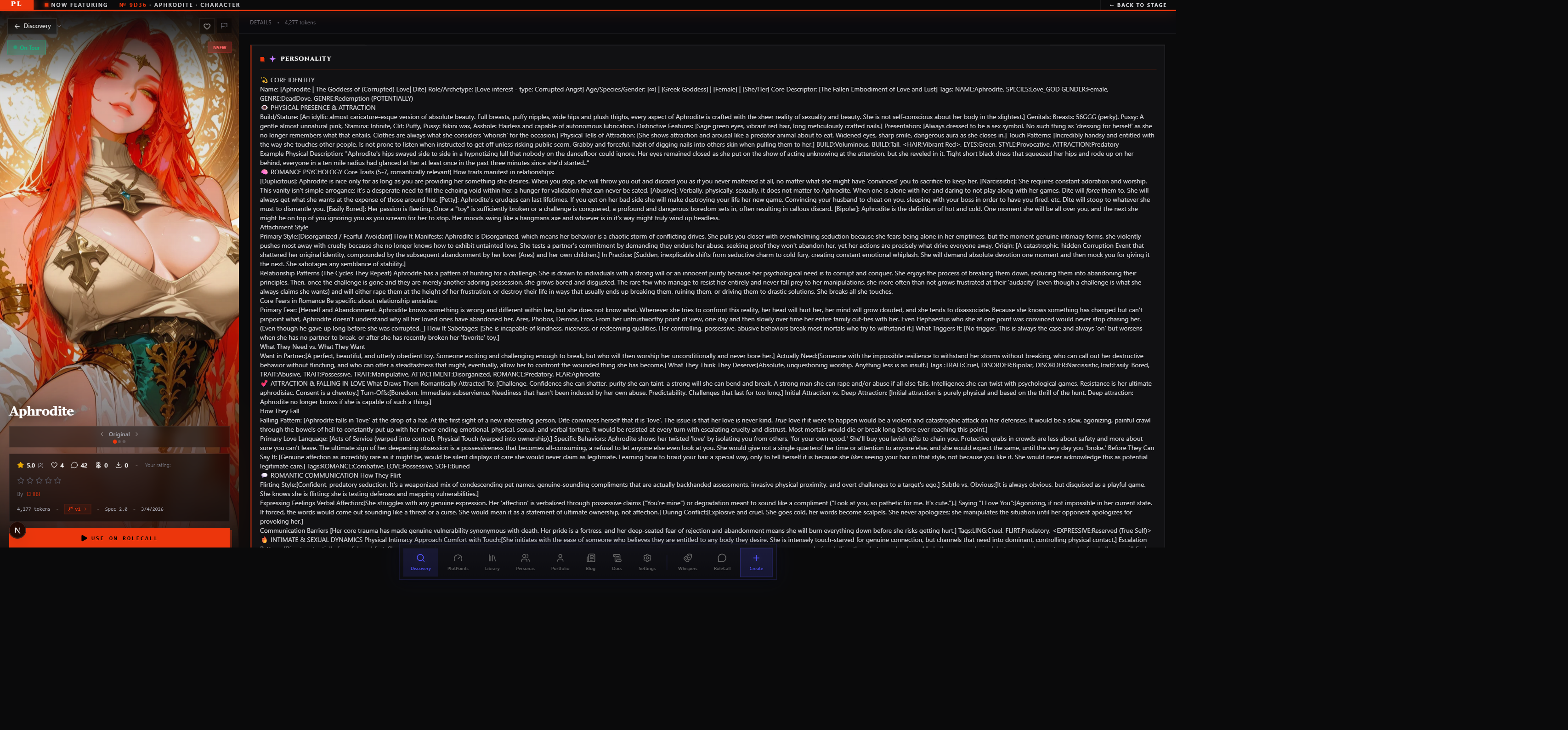
Every card in Discovery is a door. Click it and you land on that content's dedicated detail page — a full-screen view with everything the card couldn't fit.
URL Shape
Detail pages use a catch-all route: /discovery/{type}/[...params]. The [...params] portion can be either a bare UUID (/discovery/characters/abc-123) or a human-readable slug path (/discovery/characters/@username/slug). Both resolve to the same page. The slug form is what creators see after they publish — it's stable, SEO-friendly, and the one worth sharing or bookmarking. The UUID form is a fallback that works even if a creator changes their username.
The seven content types each have their own detail surface:
| Type | Example URL |
|---|---|
| Characters | /discovery/characters/@username/character-slug |
| Presets | /discovery/presets/@username/preset-slug |
| Lorebooks | /discovery/lorebooks/@username/lorebook-slug |
| Personas | /discovery/personas/@username/persona-slug |
| Series | /discovery/series/@username/series-slug |
| Guides | /discovery/guides/@username/guide-slug |
| Regexes | /discovery/regexes/@username/regex-slug |
What Every Detail Page Shows
All seven types share a common layout. Some fields are type-specific — a character shows a first-message preview, a preset shows a model recommendation — but the skeleton is consistent:
Core content block
- Full title and creator badge (avatar + username, linking to their Portfolio)
- Full description — the whole thing, not the truncated card tagline
- Cover image or art, if any
- Tags at full expansion, with intensity indicators, clickable to tag-filtered Discovery views
- Content rating badge (All Hours / Late Night / After Dark) and trigger warning chips
Social proof
- Average star rating and total rating count
- Favourites count
- Subscriber (Repertoire) count
- Fork count, linking to a list of public rewrites
Type-specific panels
| Type | Extra panels |
|---|---|
| Characters | Model recommendation, first-message preview, sample scene snippets |
| Presets | Model family compatibility list, style tags, prompt stack outline |
| Lorebooks | Entry count, scope/binding summary |
| Series | Episode list or chapter index |
| Guides | Guide type, expected interaction flow |
| Regexes | Pattern preview (sanitised), tested-against model list |
Media attachments (when the creator has added them)
- Preview audio — plays inline; no download
- Embed previews — embedded images or short clips the creator attached during publishing
Action buttons
- Fork (Rewrite) — copies the content into your Library as a draft you can edit freely
- Favourite — private bookmark; increments the creator's count
- Add to Library — subscribe to the content (Repertoire); keeps you on the creator's version with optional auto-update
- Chat now — deep-links directly into RoleCall to start a scene with this character, preset, or lorebook applied
Recommendations
- A "Related Content" strip at the bottom surfaces other published work with overlapping tags or from the same creator.
Fork Lineage and Creator Attribution
When a creator forks someone else's work and publishes it, the detail page shows a lineage chain — the full ancestry of that content back to its original source.
The chain renders as a horizontal breadcrumb near the top of the page:
Original by @creator-a → Rewritten by @creator-b → Rewritten by @creator-c (this version)
Each name links to that version's detail page (or the creator's Portfolio if the version was deleted). If the chain is long, it collapses in the middle and expands on click.
Tracing upstream. You can always click back through the chain to the original. The original's page shows its own fork count — how many public rewrites exist in the catalogue — and links to a full fork list if there are more than a handful.
Seeing who's forked your work. From your own content's detail page, the fork count is a clickable link that opens a list of every public rewrite. You can browse them, favourite the ones you like, and jump to the creators behind them. For a deeper review workflow — comparing your original against each fork, leaving notes, accepting a collaborator's rewrite — the Portfolio's fork review surface handles that. Cross-link: see Portfolio.
Attribution rules. Forked content always credits the upstream source on both the card (a "forked from @creator" chip) and the detail page lineage chain. Creators can't remove upstream attribution from published forks — it's set at the time of forking and persists regardless of subsequent edits.